Daftar Sendiri Ujian CA1C & CA2C
Self Booking CA1C & CA2C Exam

Ikut Langkah Berikut Untuk
Pendaftaran Ujian CA
Follow These Steps For CA Exam Registration
Klik Portal Ujian CA
Please click Portal Exam CA
Setelah peserta klik Portal Ujian CA, ikuti saja penerangan seperti di bawah
After participants click the CA Exam Portal, just follow the explanation below

Sila taip Nombor Kad Pengenalan peserta tanpa dash atau sengkang di kedua dua kotak atas dan bawah di halaman sesawang tersebut dan tekan butang LOGIN.
Please enter the participant's ID number without dashes in both the upper and lower fields on the webpage and click LOGIN
Anda akan dibawa ke laman OTP (6 digit code).
Di laman sesawang OTP ada dinyatakan email yang menerima OTP tersebut.
Pergi email tersebut dan masukkan OTP dan tekan butang NEXT
You will be redirected to the OTP page. The page will show which email address received the 6-digit code. Check that email, enter the OTP, and click NEXT
NOTA :-
Jika email yang tertera adalah milik orang lain atau milik ex-majikan terdahulu sila email ke certifying.agency@tm.com.my & maklumkan dalam email :
a. Masalah yang dihadapai (e.g. email sudah tidak aktif)
b. Nama Penuh
c. No. Kad Pengenalan
d. Email terkini.
NOTE:
If the displayed email address belongs to someone else or a previous employer, please email certifying.agency@tm.com.my and provide the following information:
-
a. The issue encountered (e.g., email is no longer active)
-
b. Full Name
-
c. National Registration Identity Card (NRIC) Number
-
d. Current email address

Setelah memasuki 6 digit code OTP anda akan dilayarkan dengan paparan di bawah
After submitting the 6-digit OTP code, the following screen will appear:

Untuk pendaftaran ujian sila tekan EXAM BOOKING
For exam registration please press EXAM BOOKING

Tekan butang NEW PRE-BOOK untuk pembelian token ujian terlebih dahulu
Press Button NEW PRE-BOOK to buy exam token

Setelah butang NEW PRE-BOOK akan dipaparkan sesawang berikut
The following will be displayed

Sila isi maklumat yang dikehendaki seperti berikut
Kotak MERAH : Select Skill Area (Pilih Jenis Ujian Kecekapan - CA1C, CA2C, CA1D, CA2D, CA1A, CA2A)
Kotak BIRU : Select Type - Pilih EXAM
Kotak UNGU : No. Of Pax - Jumlah Peserta
Sila tekan butang ADD untuk pembelian token
Fill in the folllowing required informations
RED Button : Select Skill Area (Exam Type - CA1C, CA2C, CA1D, CA2D, CA1A, CA2A)
BLUE Button : Select - EXAM
PURPLE Button : No. Of Pax
Press ADD Button to proceed with Token payment

Setelah menekan butang ADD akan dipaparkan ringkasan token ujian untuk dibeli seperti dalam kotak BIRU
Sila klik butang HIJAU untuk persetujuan polisi data peribadi TM
Dan klik butang CONTINUE GENERATE QUOTATION
After clicking the ADD button, a summary of the test tokens to be purchased will be displayed, as shown in the BLUE box
Please click the GREEN button to agree to the TM personal data policy and click the CONTINUE GENERATE QUOTATION button

Akan dipaparkan sebutharga pembelian token.
The quotation for the token purchase will be displayed
Jika setuju, sila tekan CONFIRM PAYMENT butang
If you agree, please press the CONFIRM PAYMENT button
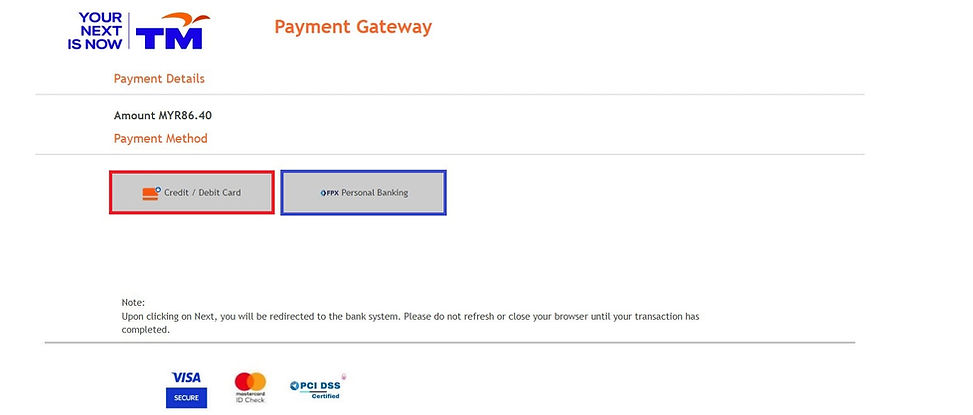
Anda akan dibawa ke bahagian Payment Gateway
Teruskan urusan pembayaran samada menggunakan Credit/Debit Card atau Personal Banking
You will be taken to the Payment Gateway section. Continue the payment process using either a Credit/Debit Card or Personal Banking
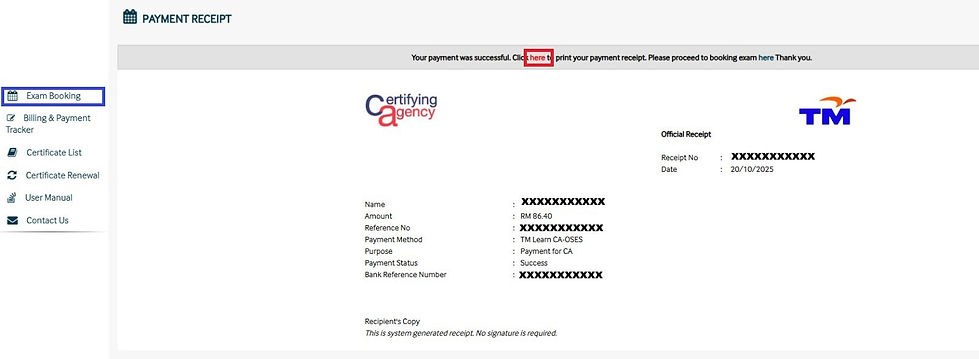
Jika pembayaran berjaya akan dipaparkan resit pembayaran.
Untuk mendapat softcopy resit, sila tekan butang HERE yang berwarna merah.
Langkah yang berikut adalah menekan butang EXAM BOOKING untuk melihat pembelian token anda.
If the payment is successful, the payment receipt will be displayed. To get a soft copy of the receipt, please press the red HERE button.
The next step is to press the EXAM BOOKING button to view your purchased tokens

Kotak MERAH adalah ringkasan pembelian token ada.
Maklumat yang dipaparkan adalah :-
a. Tarikh pembelian token
b. No resit pembayaran
c. Jumlah token peserta
Untuk membuat self booking ujian CA sila tekan butang hijau BOOKING EXAM
The RED box shows the summary of your token purchase.
The displayed information includes:
a. Token purchase date
b. Payment receipt number
c. Total number of participant tokens
To self-book the CA exam, please press the green BOOKING EXAM button

Akan dipaparkan lokasi ujian serta tarikh yang di update oleh pihak TM dari masa ke semasa.
Contoh - jika ingin mendaftar ujian di TM Digital Academy, Cyberjaya sila tekan butang biru CENTRAL
Secara am
The exam locations and dates updated by TM from time to time will be displayed.
Example - if you want to register for the exam at TM Digital Academy, Cyberjaya, please press the blue CENTRAL button.
In general
EASTERN - TM Marang
NORTHERN - TM Taiping
CENTRAL - TM Digital Academy, Cyberjaya
SOUTHERN - TM Melaka atau TM Kulai
SARAWAK - TM Kuching
SABAH - TM Kota Kinabalu

Setelah menekan butang CENTRAL , akan dipaparkan maklumat yang dikehendaki seperti di atas.
Kotak MERAH - Skill Area (Jenis ujian)
Kotak HIJAU - Venue (Lokasi Ujian)
Kotak HITAM - Session / Time (Waktu ujian)
Kotak UNGU - No of Pax (Jumlah Peserta)
Setelah mengisi maklumat yang diminta sila tekan butang NEXT
After pressing the CENTRAL button, the required information will be displayed as shown above.
RED box - Skill Area (Type of exam)
GREEN box - Venue (Exam location)
BLACK box - Session / Time (Exam time)
PURPLE box - No of Pax (Number of participants)
After filling in the requested information, please press the NEXT button

Langkah seterusnya adalah mengisi maklumat peserta
Kotak MERAH - Name (Sila tulis nama penuh peserta seperti mana di dalam Kad Pengenalan)
Kotak BIRU - ID Number (Sila tulis nombor Kad Pengenalan peserta tanpa sengkang)
Kotak UNGU - Email Address (Sila tulis email individu peserta)
Setelah selesai sila tekan kotak NEXT
Ikut saja arahan di laman sesawang tersebut.
Selamat Mendaftar
The next step is to fill in the participant's information
RED box - Name (Please write the participant's full name as stated in the Identity Card)
BLUE box - ID Number (Please write the participant's Identity Card number without hyphens)
PURPLE box - Email Address (Please write the participant's individual email address)
Once completed, please press the NEXT box.
Just follow the instructions on the website.
Happy Registering!
